Winlink
The app includes built-in Winlink support, letting you send and receive Winlink emails directly over RF.
⚠️ Experimental feature! Winlink support is experimental. It may not always work as expected and its behavior can change in future updates. Use it with that in mind.
Accessing Winlink
Open the Messages section. In the bottom-left corner of the messages screen you will find the Winlink button (blue envelope icon).
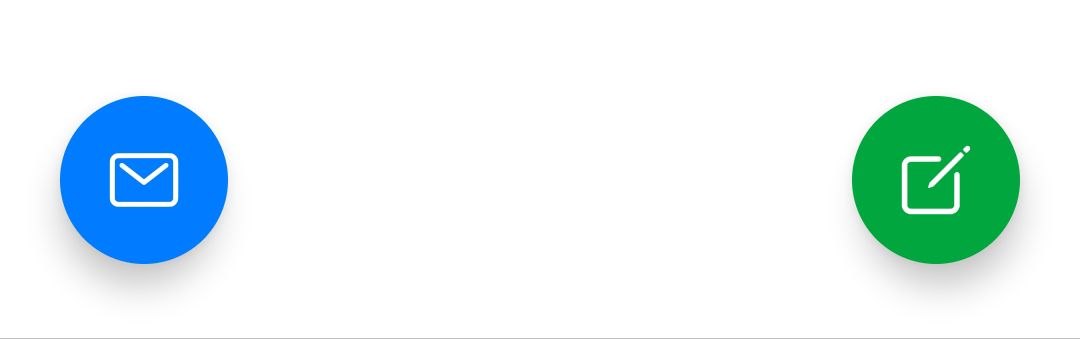
Tapping this button opens the Winlink screen.
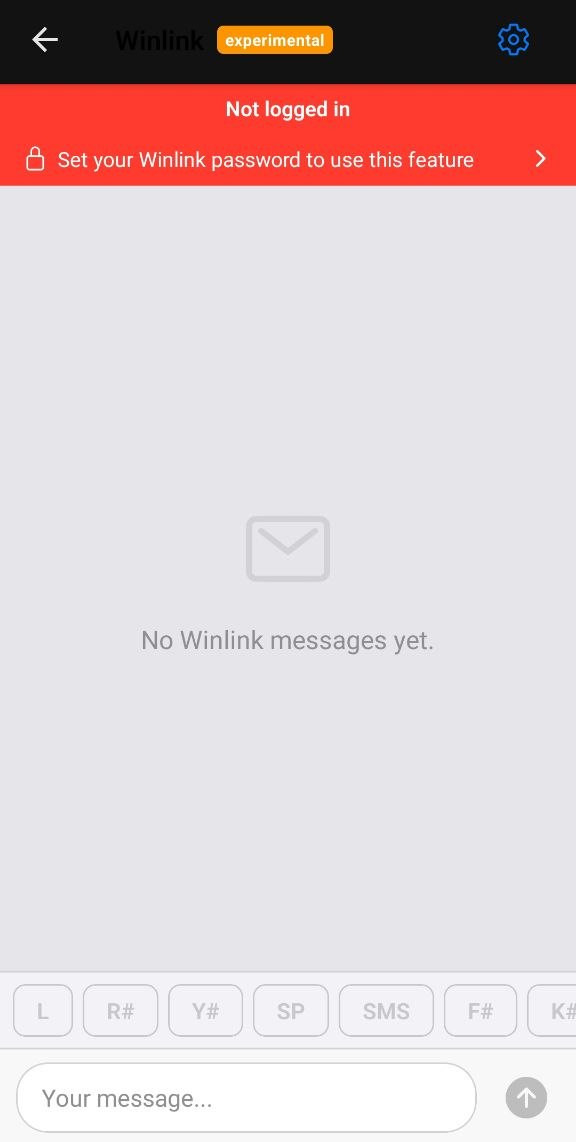
Settings (Winlink password)
Before you can use Winlink, you must log in with your Winlink password. Tap the settings icon (gear) in the top-right corner of the Winlink screen. A modal will appear where you enter your Winlink password and press Save.
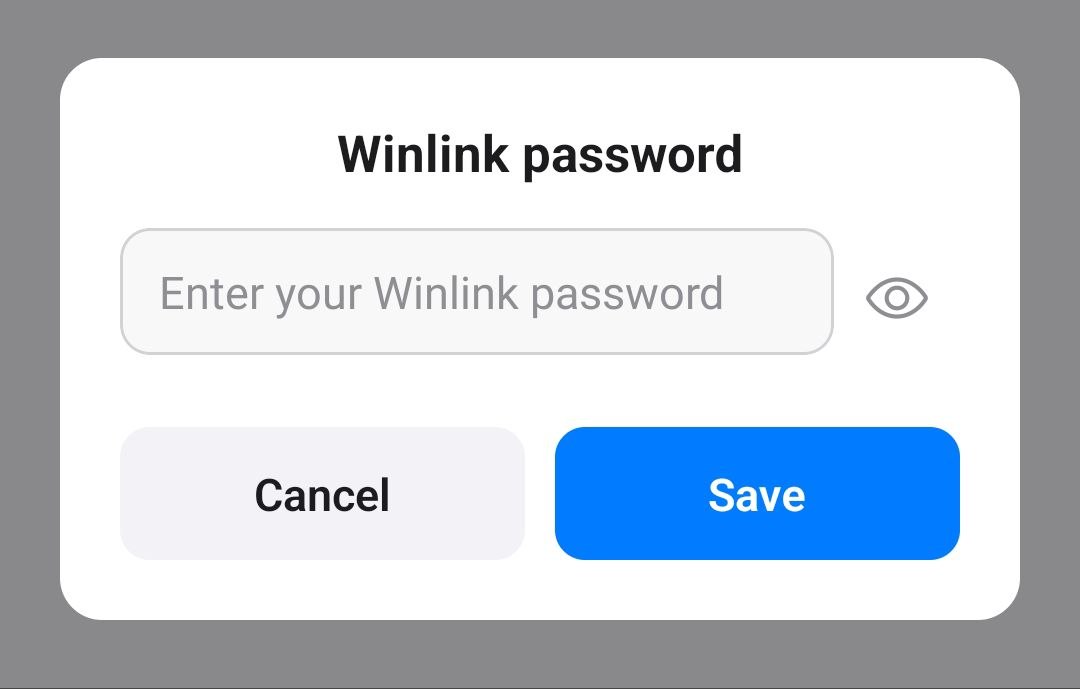
Until a password is set, the screen shows a “Not logged in” warning and the feature stays locked.
Sending Winlink commands and messages
At the bottom of the Winlink screen, above the message input, there is a row of quick command buttons such as L, R#, Y#, SP, SMS, F#, K# and more. These are standard Winlink commands you can send with a single tap:
- L – list messages
- R# – read message number
# - and other Winlink commands.
Besides these commands, you can also type and send messages normally using the message input field at the bottom.