Messages & Bulletins
The app includes a full-featured, redesigned APRS messaging system. Bulletins are also displayed in the messages section alongside regular conversations.
How the Messaging System Works
The messaging system has been rebuilt from the ground up. Here are the key principles:
- All messages for your callsign are received - any message addressed to your callsign will be displayed and automatically acknowledged (ACK), regardless of the SSID. We believe all messages sent to your callsign are relevant to you, no matter which SSID was targeted.
- Multiple callsigns are supported - if you have other devices on your device list (e.g. automatic/home stations with different callsigns), those callsigns are also treated as yours. Every callsign present on your device list is considered your own.
- Conversations are grouped by callsign, not SSID - you will see a single conversation per remote callsign. The app automatically determines the correct SSID to send your messages to. If the other station replies from a different SSID (for example, they moved from a mobile device to a home station), the app seamlessly updates and continues the conversation on the new SSID. You never have to worry about SSIDs - everything is handled automatically and transparently.
Accessing Messages
On the Main Screen, you will find the Messages Section.
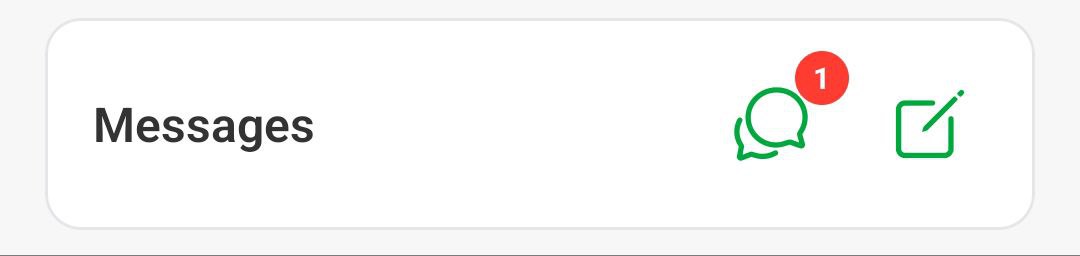
- Messages List (Chat Icon): Tapping this button opens your full conversation list. If you have unread messages, a badge will appear on this icon indicating the count.
- New Message (Pencil Icon): This button, located next to the chat icon, opens a new, blank message screen.
Unread Messages Indicator on Other Screens
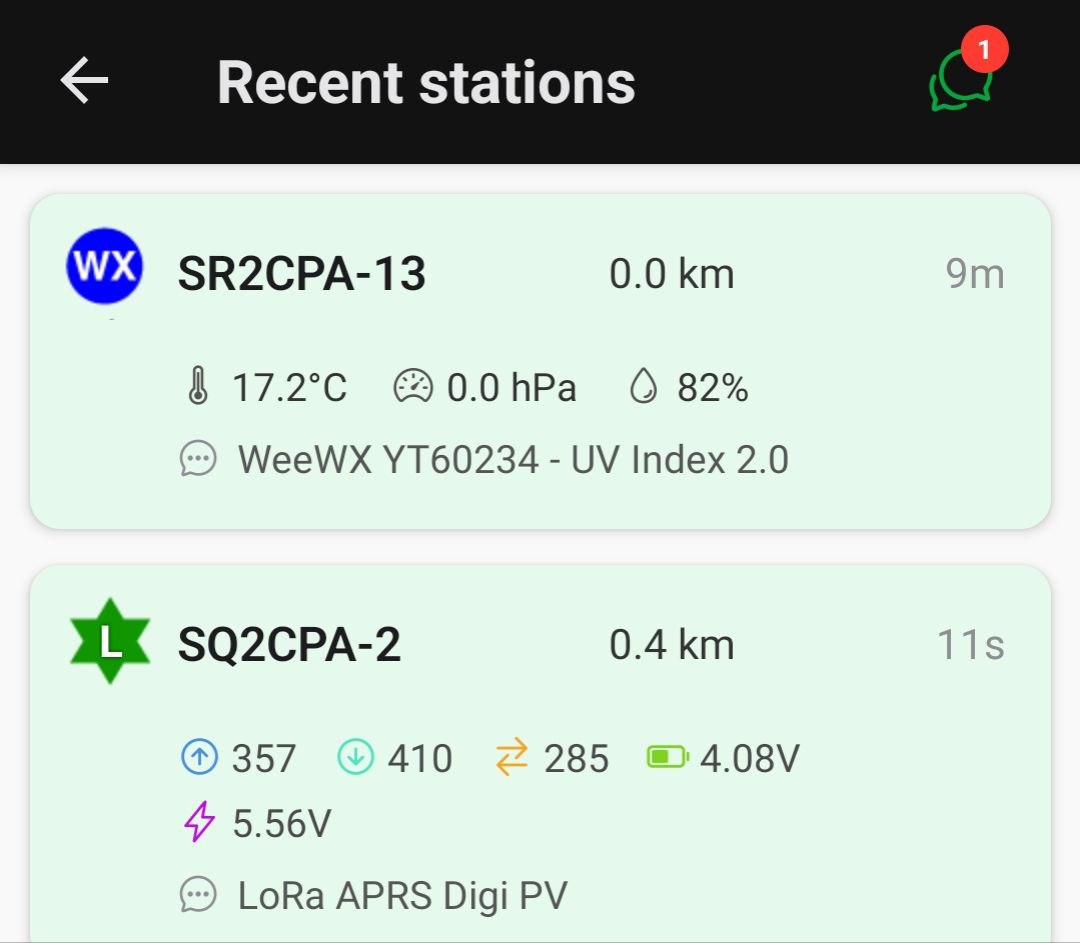
You don’t have to be on the main screen to know when something new arrives. On other screens (for example, Recent stations), a messages icon with an unread badge appears in the top-right corner whenever you have unread messages. Tapping it takes you straight to your conversations.
New Message Screen
When you tap the “New Message” button, you are taken to the compose screen. There are three message types you can choose from:
Normal Message
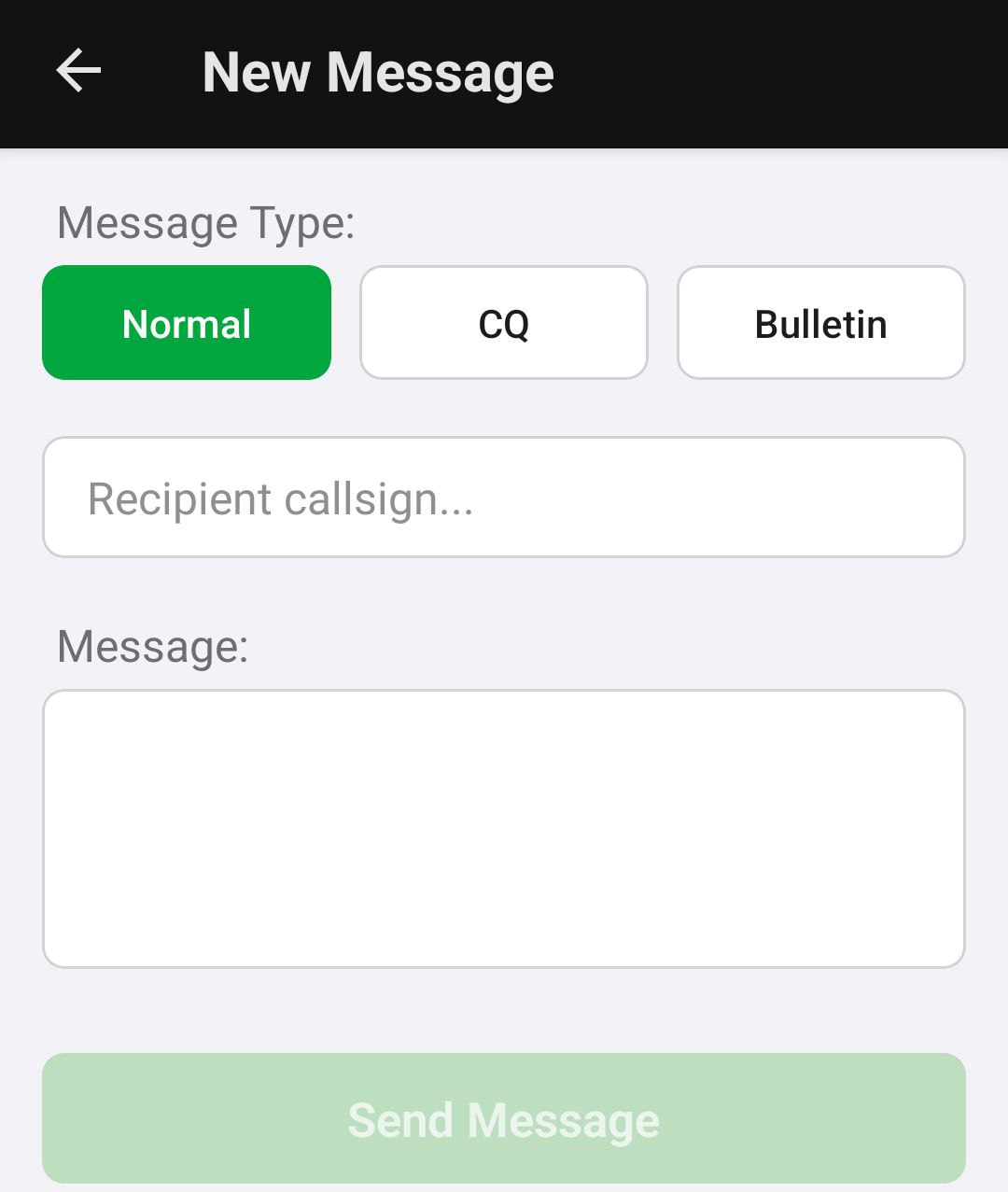
A standard message sent to a specific recipient. Enter the recipient’s Callsign (with optional SSID) and your Message content. After pressing the send button, you will be automatically redirected to the conversation screen for that recipient. The app will wait for an ACK (acknowledgment) from the recipient.
CQ Message
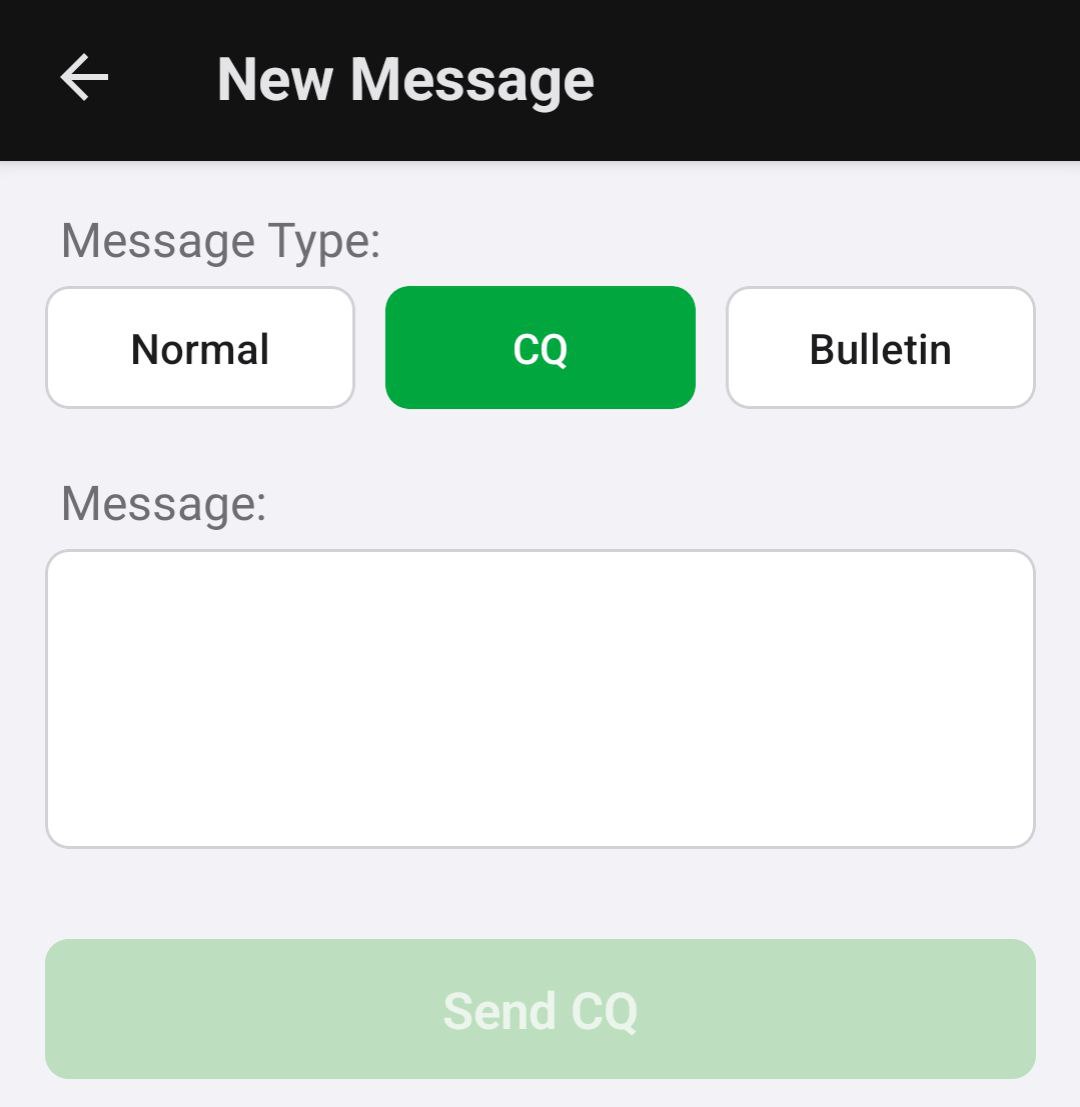
A CQ message is sent as a bulletin with the ID BLN1CQ. All other compatible apps will display this message as if you sent it directly to them. This is useful for calling out to anyone listening. Since it is a bulletin, you will not receive an ACK.
Bulletin
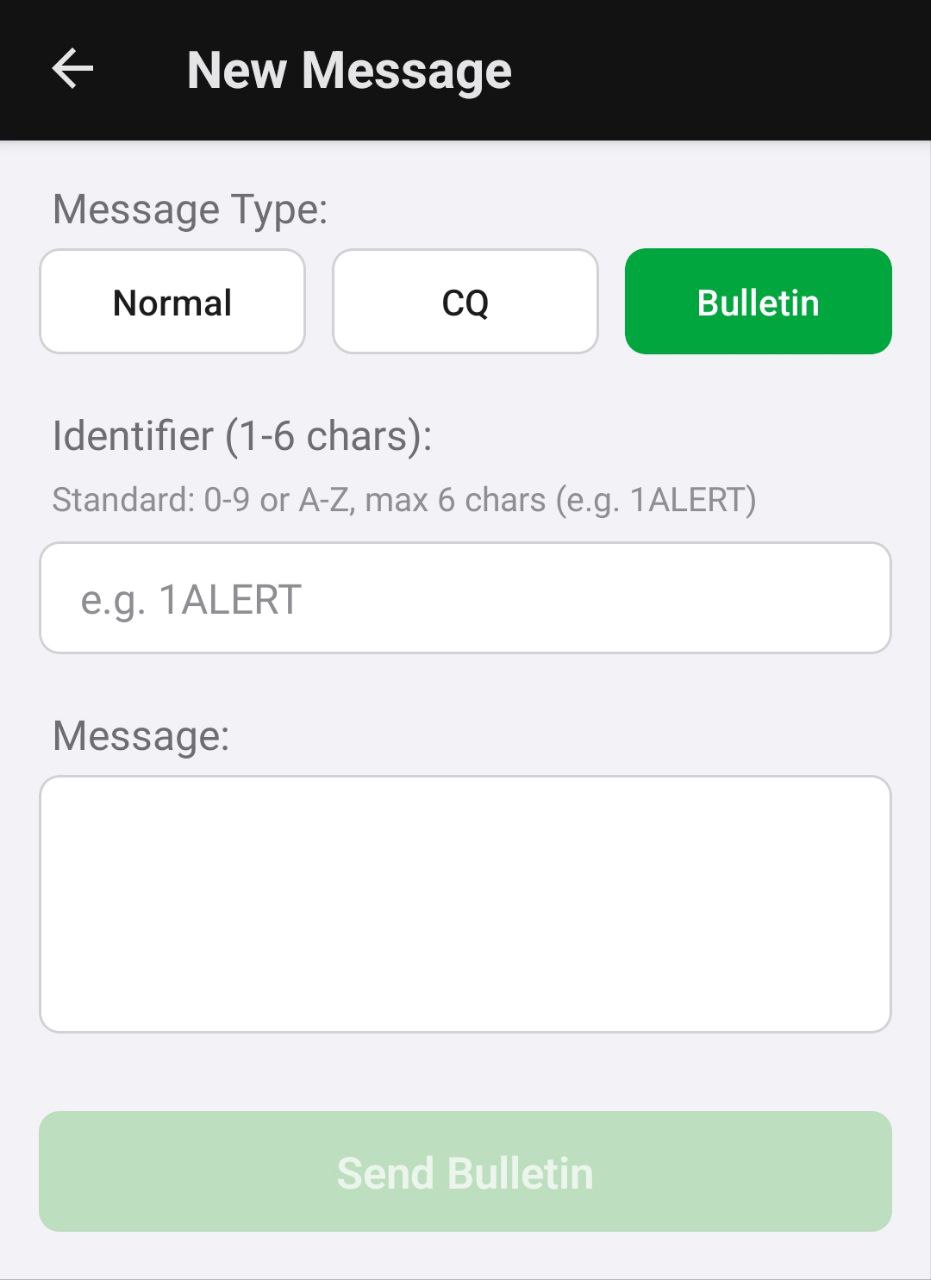
A bulletin allows you to broadcast a message to all stations. You need to provide a Bulletin ID (1–6 characters, 0-9 A-Z, e.g. 1ALERT, 1WX, or just 5) and your Message content. Bulletins are one-way - you will not receive an ACK.
Conversation List Screen
This screen shows all your separate conversations.
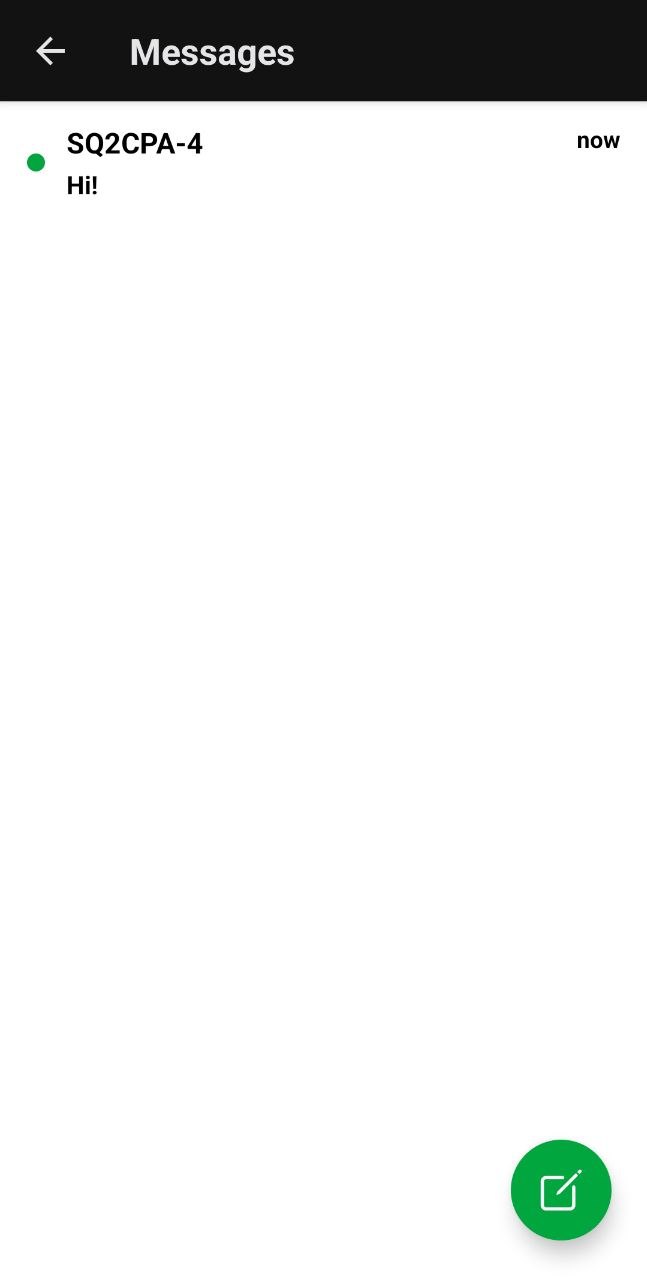
- It’s a standard conversation list. Unread conversations are highlighted.
- At the bottom, there is a floating button to create a new conversation (which takes you to the New Message Screen).
- To delete a conversation, long-press any conversation in the list, and a delete option will appear.
Conversation View
This is a standard chat screen showing the history with a specific station.
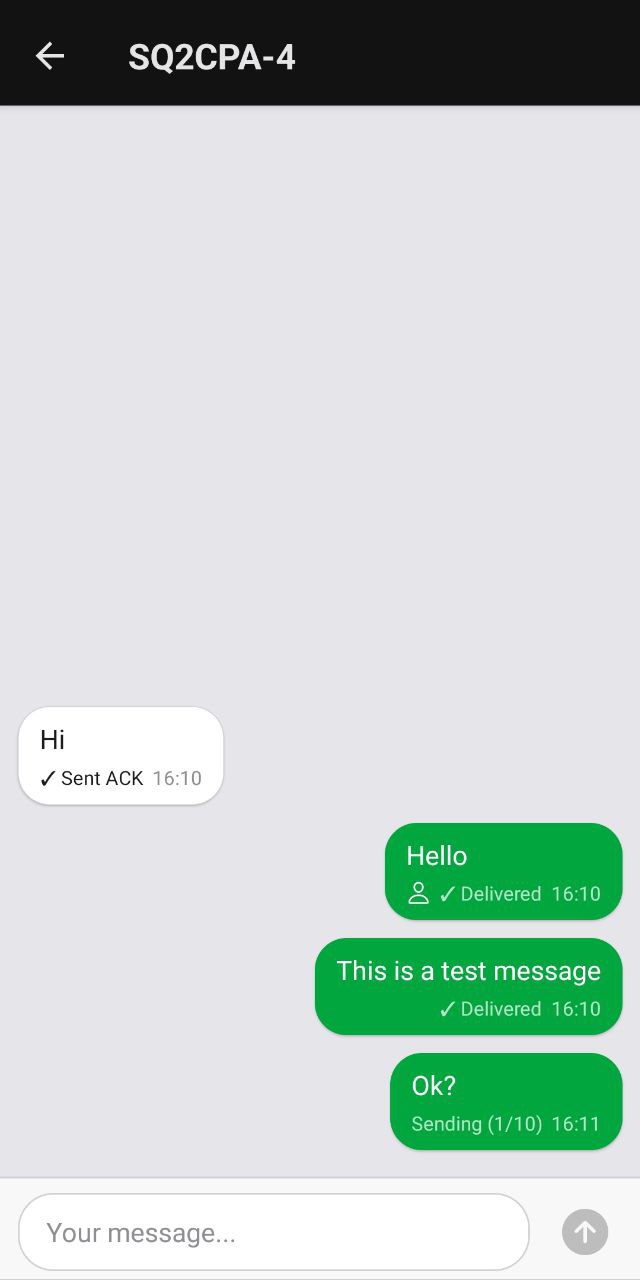
At the top of the conversation you will see the callsign with SSID - this is the SSID that your messages are currently being sent to, serving as an informational indicator. On the right side of the top bar there are two buttons - one for Predefined Messages and one for the Query Commands helper.
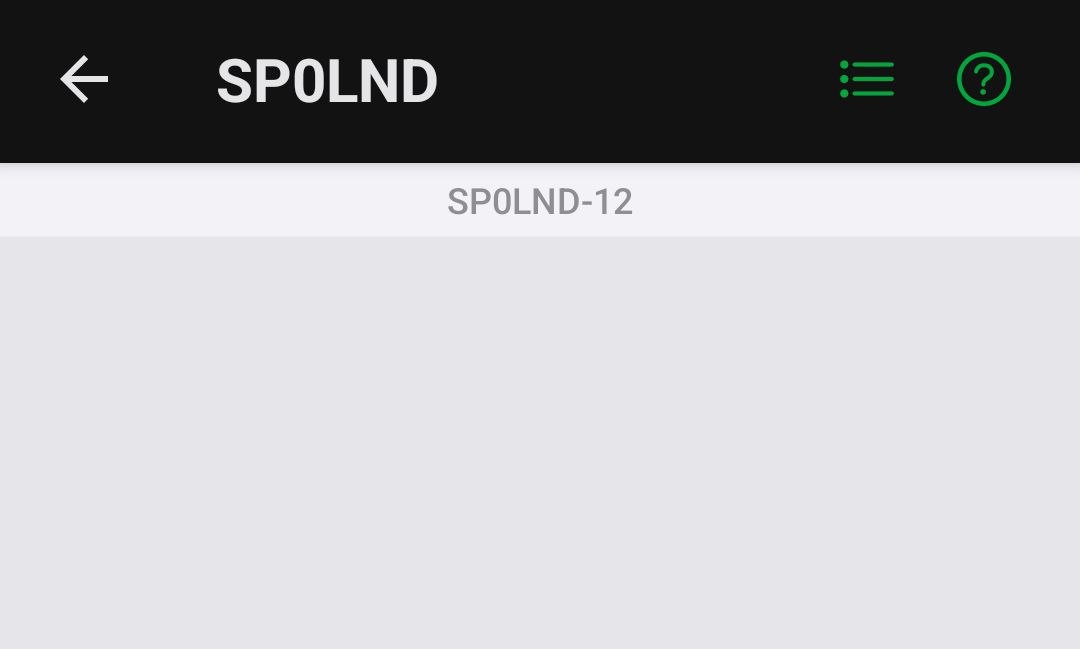
Note: These two buttons sometimes get stuck and don’t respond on the first tap - if nothing happens, just tap a few times and the panel will open.
Next to the callsign there are two icons:
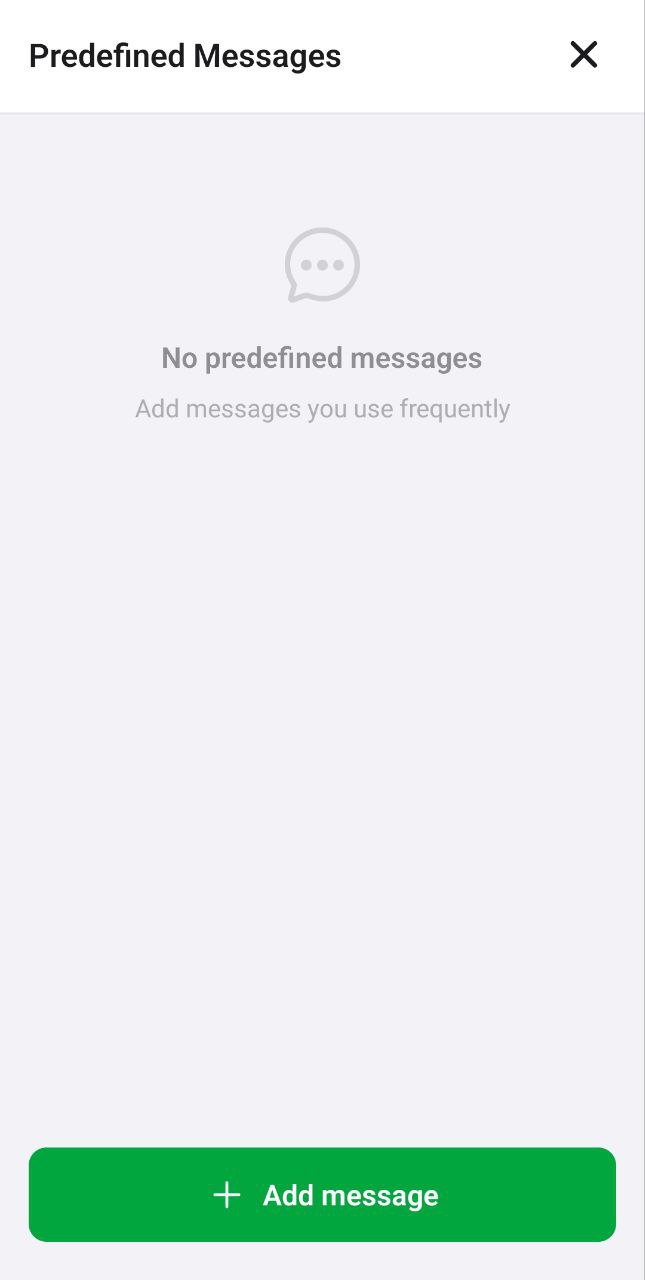
- Predefined Messages (left icon): Opens a list of predefined messages that you can quickly recall, edit, and send. This is especially useful for activities like SOTA, POTA, and similar operations where you frequently send the same messages.
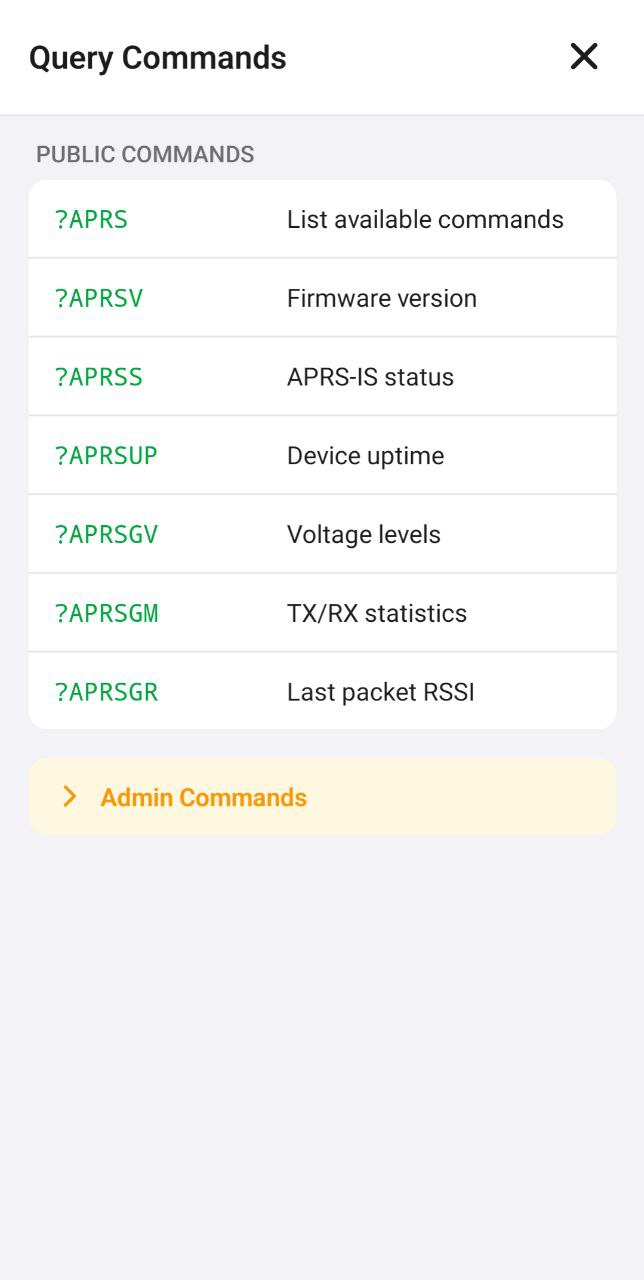
- Query Commands (right icon): Opens a toolkit of query commands. Useful when you want to quickly send a query command to a station but don’t remember the exact syntax.
Query Command Suggestions
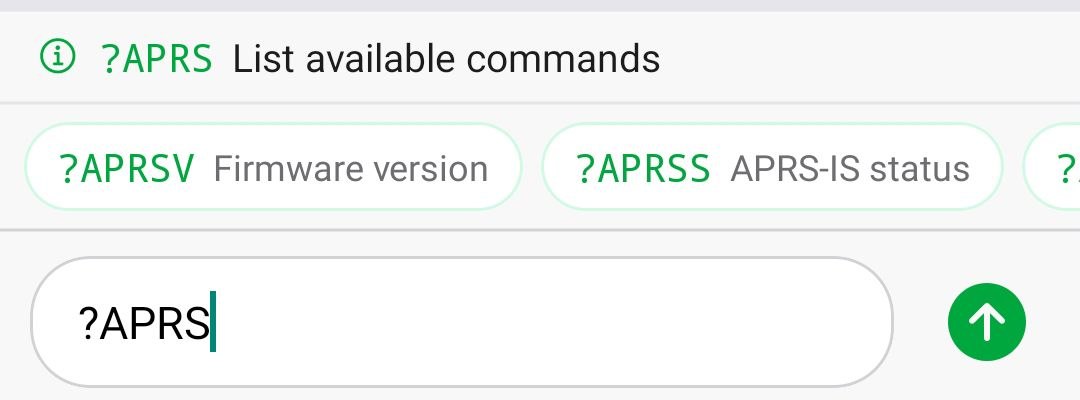
When you start typing a query command for a supported device, the app shows inline suggestions above the message field, with the matching commands and a short description of each. You can tap a suggestion to fill it in instead of typing the full command.
Quick Replies
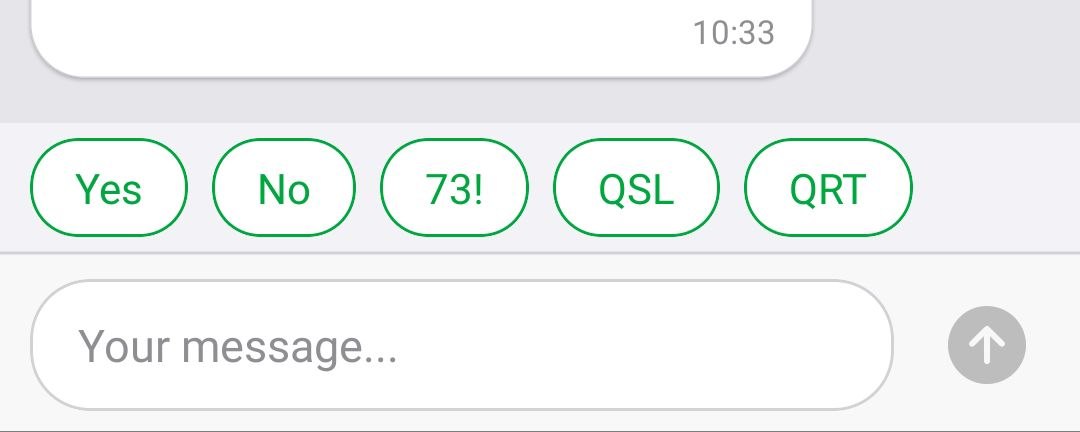
If the other station has just written to you, the app shows a row of quick replies (such as Yes, No, 73!, QSL, QRT) above the message field. Tap one to instantly send that response without typing.
Message Details
- Received Messages:
- Displays information about whether an
ACK(acknowledgment) was successfully sent back from your device. - Messages received via TCPIP (from the internet, not RF) are marked with a “network” symbol.
- Displays information about whether an
- Sent Messages:
- Displays information about whether an
ACKwas received from the recipient. - A person icon next to a sent message indicates that the
ACKwas received from a compatible app (like another LoRa APRS App user), meaning it was likely a manually confirmed reply, not an automatic one.
- Displays information about whether an
- Message Actions: If you long-press one of your own sent messages, a menu will appear allowing you to:
- Cancel Sending: If the message is still in the queue to be sent.
- Resend: To try sending the message again (e.g., if it failed or received no ACK).
Bulletin View
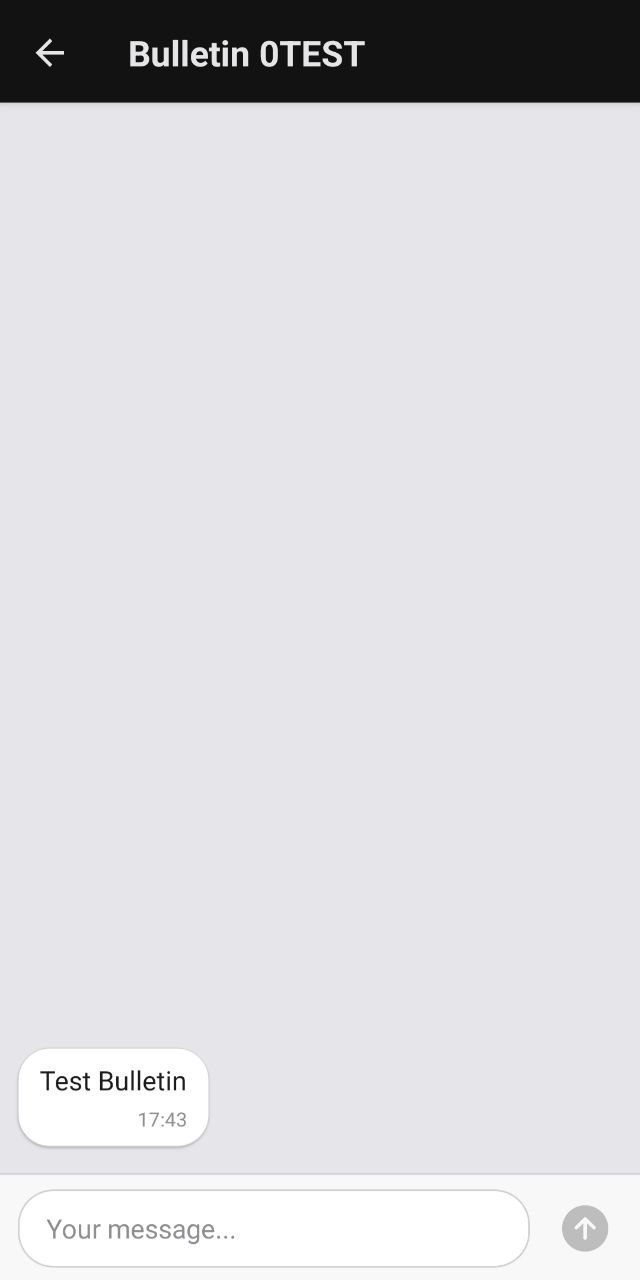
When you open a bulletin conversation, the screen displays the Bulletin ID at the top. Unlike regular conversations, there are no predefined messages or query command options available.
Important: If you reply to a bulletin, your response will be sent as a bulletin with the same Bulletin ID - it will not be sent as a direct message to the original sender.